You stare at the screen. A clunky while loop sits there, tasked with processing exactly one single line of text. It looks like a grown adult wearing inflatable arm floaties in a puddle. It is offensive to your sensibilities as a clean, efficient programmer.
Here is the offending legacy code, minding its own business:
echo "Sector_7G" | while read -r zone; do
    echo "Deploying update to $zone"
done
There is only one line of input coming from that echo command. Wrapping a while loop around a single item is administrative overkill. You decide to fire the useless middle management. Why keep a loop when you can simply pipe the value directly into the read command and print it out on the next line?
You swiftly refactor the code into a sleek, modern masterpiece of brevity:
echo "Sector_7G" | read -r zone
echo "Deploying update to $zone"
The two versions look like they should produce the exact same result. They do not.
The first version successfully prints your deployment message. The second version, your beautifully optimized creation, prints a depressing half-sentence: Deploying update to.
At first, this makes absolutely no sense. The read command clearly received the input. The script did not freeze and wait for you to type something on the keyboard, which means the text from the echo command was successfully swallowed by read. The problem is what Bash decided to do with your variable immediately afterward.
A bureaucratic murder mystery
To understand where your variable went, you have to understand how the pipe operator actually functions. The vertical bar | is not a simple plumbing tube that gently moves water from one place to another. In the world of Bash, a pipeline is a paranoid corporate temp agency.
In Bash, every command in a pipeline is executed in its own isolated environment, known as a subshell.
When you type echo “Sector_7G” | read -r zone, Bash refuses to let your main script handle the incoming data directly. Instead, it hires two temporary workers. One temp worker is hired solely to shout the word “Sector_7G“. The second temp worker, confined to a tiny, soundproof cubicle called a subshell, is hired to execute the read command.
The read command does exactly what you asked. It wakes up in its temporary cubicle, catches the text coming through the pipe, proudly writes it on a sticky note labeled $zone, and slaps it on the desk. The temp worker is happy. They have successfully assigned the variable.
But the exact millisecond the pipeline finishes executing, Bash acts as a ruthless corporate liquidator. It fires the temp worker, incinerates the cubicle, and shreds every single sticky note inside it.
When the script moves to the next line of your code to print the message, it is running in the parent shell. This is the executive boardroom. The parent shell has absolutely no idea what happened down in the temporary cubicles. To the parent shell, the variable $zone is completely empty because the employee holding it no longer exists.
This explains why your original, clunky while loop actually worked. The echo statement was trapped inside the loop, meaning it was executed inside the exact same temporary cubicle as the read command.
Taking hostages in the cubicle
Now that we know the pipe operator is essentially an incinerator for local variables, how do we fix the optimization without reverting to a pointless while loop? You have a few clever options for tricking the bureaucracy.
If you absolutely must keep the pipeline, you can use curly braces to group your commands together. This forces both the data reading and the subsequent actions to execute inside the same doomed environment.
This is basically a hostage situation. You know the temporary office is going to be burned to the ground in a fraction of a second, so you force the worker to finish the entire presentation and broadcast the results before the corporate security guards arrive. The variable is still trapped in a subshell, but since you are utilizing it from within that same confined space, it works perfectly.
Bypassing the mailroom entirely
If you want a cleaner script, you should avoid the temp agency altogether. Process substitution is the modern, preferred way to handle this problem.
Instead of piping data forward into a read command, you redirect the output of a command block directly into the input stream of your main shell. It looks like a slightly confused bird beak, but it is highly effective.
read -r zone < <(echo "Sector_7G")
echo "Deploying update to $zone"
There is no pipeline here. You have completely bypassed the subshell creation protocol. It is the equivalent of installing a pneumatic tube that shoots the document directly onto your executive desk. The read command executes in your primary, current shell, which means your shiny new variable is saved exactly where you need it, safe from incineration.
The lazy desk slap method
Sometimes you do not need a pneumatic tube. If you are just passing a simple string of text or the evaluated result of a basic command, you can use a here-string. This is denoted by three consecutive less-than signs.
read -r zone <<< "Sector_7G"
Like process substitution, this completely avoids pipelines and subshells. It is the administrative equivalent of walking into the office and slapping the raw data directly onto the read command’s desk without filling out any requisition forms. It is fast, slightly dirty, and entirely immune to the subshell vanishing act.
The dark magic corporate loophole
Perhaps you are a Bash purist. You insist on using standard vertical pipes, you refuse to use curly braces, and you demand that your variables survive the process. If you are running Bash version 4.2 or newer, there is a bureaucratic loophole you can exploit.
You can flip a magic switch at the absolute top of your script.
shopt -s lastpipe
echo "Sector_7G" | read -r zone
echo "Deploying update to $zone"
The lastpipe option is a buried corporate policy that tells Bash to change how it handles the assembly line. It mandates that the very last command in any pipeline gets a full-time contract. Instead of spawning a doomed subshell for the final command, Bash executes it in the current, parent shell environment.
A word of warning for those who like to test things live. This magical loophole works beautifully inside saved scripts, but if you try typing it directly into your interactive terminal, Bash will likely ignore you. The terminal environment uses job control, which interferes with this policy. It is strictly a trick for your automated scripts.
The final autopsy report
Bash pipelines are undeniably brilliant mechanisms for shuffling text from one department to another. They are the efficient conveyor belts of the command line. However, we must stop viewing them as simple plumbing. A pipeline is actually a high-security quarantine zone managed by a deeply paranoid human resources department. It operates on a strict policy of total deniability. The exact millisecond the data transfer is complete, the entire department is liquidated with extreme prejudice.
The next time a vital piece of data vanishes without a ransom note after being perfectly processed, resist the urge to question your own sanity. Do not assume you typed the variable name incorrectly. Instead, look closely at your syntax. Look for that single, innocent-looking vertical bar.
The pipe symbol looks like a harmless structural pillar holding your commands together. In reality, it is a locked door behind which your local variables are quietly smothered with a bureaucratic pillow. Your data was not misplaced due to bad code. It was simply assigned to a temporary employee who was instantly fired, erased from the corporate registry, and escorted off the premises before they could hand you the final report. Welcome to Bash administration. The bureaucracy always wins, but at least now you know how to forge the paperwork.
A few years ago, a colleague sent me an SSH public key so I could grant them access to one of our servers. I opened the file, looked at it, and immediately frowned.
It looked like this:
ssh-ed25519 AAAAC3NzaC1lZDI1NTE5AAAAIAAAAAwA...
It was tiny. It looked like a typo. It looked like something a cat would produce by walking across a keyboard on its way to the food bowl.
I had spent my entire professional life dealing with RSA keys. RSA keys are the cryptographic equivalent of a 1970s Buick. They are massive. They take up three parking spaces in your terminal window. They practically come with their own zip code:
ssh-rsa AAAAB3NzaC1yc2EAAAADAQABAAABAQ... [insert three paragraphs of gibberish here]
My first reaction was simple, visceral, and completely wrong: This can’t be secure. It’s too small.
I assumed my colleague had made a mistake. Perhaps they had prematurely hit ‘Enter’, or their copy-paste buffer had suffered a catastrophic failure. So, with the gentle, patronizing tone of a seasoned sysadmin, I emailed them back and asked for a “proper” key. You know, an adult key. A key with some girth to it.
After a bit of light reading, and a healthy dose of public humiliation, I realized I was the idiot in this transaction. That short little string wasn’t broken. It was an ED25519 key. And as it turns out, it is superior to my beloved, lumbering RSA keys in almost every conceivable way.
Here is why you need to stop size shaming modern SSH keys, and why ED25519 is the tiny, aggressive honey badger of cryptography.
1. The agony of matchmaking vs. the beauty of chaos
To understand why ED25519 is better, you have to look at how these keys are born.
Creating an RSA key is like playing an exhausting game of mathematical matchmaking. The algorithm requires you to find two massive, entirely random prime numbers, and then multiply them together. The security of RSA relies on the fact that while multiplying two giant primes is easy for a computer, figuring out which two primes were multiplied together (factoring) is incredibly hard.
But there’s a catch. Finding those primes is tedious. The code required to generate and verify them is complex. And if your random number generator is even slightly flawed, or if the code is compromised, which has famously happened before, you end up with a weak, easily crackable key. RSA is picky. It demands very specific, artisanal, farm-to-table numbers.
ED25519, on the other hand, is gloriously unpretentious.
It is based on Elliptic Curve Cryptography (specifically, Twisted Edwards curves, which sounds less like math and more like a Victorian stomach ailment). Because of how elliptic curves work, ED25519 doesn’t need two massive primes. It just needs a random number. Any random number. Give it 32 bytes of pure, unadulterated digital chaos, and it says, “Perfect, I can work with this.” It’s simpler, less prone to implementation errors, and incredibly resilient.
2. It packs a bigger punch in a smaller package
Despite being roughly a sixth of the size of a standard 4096-bit RSA key, an ED25519 key provides an equivalent, if not higher, level of security.
In cryptography, bigger isn’t inherently better; it just means the math you’re relying on is less efficient. RSA is a relic of an era relying on integer factorization. ED25519 relies on the discrete logarithm problem for elliptic curves. I won’t bore you with the math, mostly because I don’t want to explain it, but the practical result is that an attacker would need vastly more computing power to crack an ED25519 key than an RSA key of equivalent security level.
3. It’s fast. Disgustingly fast.
Because RSA keys are so massive, they take a measurable amount of time to generate. You run ssh-keygen -t rsa -b 4096, and you have enough time to take a sip of coffee while the computer sweats through the prime hunting process.
ED25519 keys generate almost instantaneously. More importantly, they are incredibly fast at the two things that actually matter day-to-day. Signing and verifying. When you log into a server, the authentication handshake happens faster, reducing CPU load. It also has the added benefit of being immune to certain side-channel attacks, where hackers monitor how long it takes your CPU to process a password to guess what it is. ED25519 operations run in “constant time,” meaning it gives attackers absolutely nothing to work with.
Embrace the tiny key
It took a bruised ego for me to let go of my RSA comfort blanket. But technology moves on. We no longer use vacuum tubes, we no longer print out MapQuest directions, and we no longer need our SSH keys to look like the terms and conditions of an iTunes update.
If you are still generating RSA keys, do yourself (and your servers) a favor. Type ssh-keygen -t ed25519. Embrace the tiny key. It won’t let you down.
Changing the default SSH port is one of those pieces of sysadmins advice that keeps getting repeated because it sounds sensible. Port 22 is well known, automated scanners constantly probe it, and moving SSH to something like 2222 makes the server appear a little less obvious.
It also gives you a new port number to remember. That trade-off would be worth discussing if changing the port provided meaningful protection. In most ordinary server setups, it does not. It mostly reduces some automated noise while adding a small amount of friction to your own workflow.
Suppose you move SSH from 22 to 2222. Your connection changes from:
ssh user@server
to:
ssh -p 2222 user@server
You can, of course, put the port in ~/.ssh/config:
Host foo.bar
    HostName foo.bar
    User user
    IdentityFile ~/.ssh/lorenba
    Port 2222
Now everything works exactly as before, but notice what happened? You changed a perfectly standard configuration, updated your client configuration to compensate for the change, and the bots still have a way to discover the SSH service.
The only obvious benefit is that some scanners looking specifically for port 22 will move on. Is that really worth optimizing?
The illusion of invisibility
Security through obscurity is a bit like hiding your house key under the doormat. It feels clever for about five seconds, right up until you realize that checking under the doormat is the very first thing a burglar will do. Modern port scanners do not just knock on port 22 and call it a day. A tool like Nmap can sweep all 65,535 ports on a machine in the time it takes you to take a sip of coffee. Once the scanner finds an open port, it probes the service. When your server enthusiastically responds with an SSH banner, the gig is up.
You have not hidden the service. You have only slightly delayed its inevitable discovery.
The privileged port problem
There is a more technical quirk to consider, one that often escapes casual observation. In Unix-like operating systems, ports below 1024 are considered “privileged ports.” Only the root user can bind to them. Port 22 falls safely inside this VIP section.
If you move your SSH daemon to a high port, say 2222 or 65000, you are stepping out of the privileged zone. Suppose a malicious actor manages to crash your SSH service, perhaps through an out-of-memory error or a kernel bug. If they have a non-root foothold on your system, they could potentially spin up their own rogue SSH daemon on that high port before your system restarts the legitimate one. Suddenly, you are authenticating against an attacker’s honeypot.
By keeping SSH on port 22, you guarantee that only a process with root privileges can handle your login requests. It is a subtle but foundational layer of trust.
What to do instead of moving the port
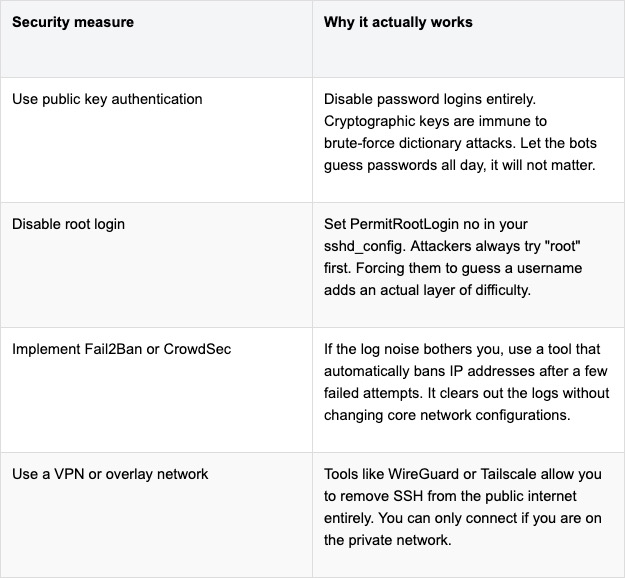
If changing the port is a theatrical distraction, how do we actually secure the server? The good news is that the alternatives are far more robust and require zero memorization of arbitrary numbers.
At the end of the day, port 22 is where SSH lives. Leaving it there is not a sign of laziness. It is a sign that you trust your actual security configurations rather than relying on a game of hide and seek.
The pager goes off at 3 AM. Your most critical Kubernetes node is gasping for air. You SSH into the box, but your fancy cloud observability agents are completely frozen. You cannot run top, htop is a distant dream, and your metrics dashboard is just a spinning loading wheel of despair.
What do you do now?
Most people panic. But if you know where to look, your Linux server has a secret, real-time dashboard built right in. It requires zero agents, consumes zero disk space, and is literally generating its data on the fly just for you.
Welcome to the weird, wonderful, and slightly chaotic world of the proc pseudo-filesystem.
The hallucinated filesystem
If you run ls /proc, you will see what looks like a messy drawer full of text files and numbered directories. It is easy to dismiss it as legacy kernel clutter. But here is the bizarre truth about this directory. It does not exist.
Not on your SSD, anyway. The proc filesystem is a pure hallucination managed by the kernel. It exists entirely in RAM. The files inside it have a size of zero bytes right up until the exact microsecond you try to read them. When you run cat /proc/uptime, the kernel intercepts your request, hastily scribbles down the current system state, and hands it back to you.
It is the “everything is a file” Unix philosophy taken to its absolute, absurd logical conclusion. And once you understand how to read it, it becomes an indispensable tool for Cloud Architecture and DevOps engineers.
Gold nuggets for your daily rotation
You do not need to memorize every file in here. Treat it like a hardware store. You only need to know where the hammers and screwdrivers are kept.
The memory health check
Checking /proc/meminfo gives you your memory health at a glance, long before you even try to execute free -h. It is the raw, unfiltered truth about your RAM.
The CPU heartbeat
You can check /proc/loadavg and /proc/stat to understand CPU load and scheduler activity. Load average is like looking at the queue outside a nightclub. It tells you how many processes are waiting to get onto the CPU dance floor.
The network socket inventory
When you are trapped inside a stripped-down Docker container that lacks ss or netstat, /proc/net/tcp and /proc/net/udp are your best friends. They list every active socket connection.
The runtime clock
A quick look at /proc/uptime gives you the system runtime and idle time in a single line. It is incredibly easy to parse for quick uptime checks in your automation scripts.
Peeking inside running applications
If the root of this filesystem is the global state of the machine, the numbered directories are the personal diaries of every running application. Each number corresponds to a Process ID.
Finding the exact command
Sometimes, ps truncates output or is not installed. You can read /proc/<pid>/cmdline to see the exact, literal command that launched the process, null bytes and all.
Reading the environment
Checking /proc/<pid>/environ reveals the environment variables the process started with. It is an absolute goldmine for debugging and a terrifying danger zone for security. Environment variables are like a bouncer who will not let the application start unless its name is on the list, and the application brought the list itself.
Chasing file descriptors
If you ever hit a “too many open files” error, look inside /proc/<pid>/fd/. This directory contains symlinks to every single file, socket, and pipe the application is currently holding onto.
Surviving the cloud native illusion
Containers are, fundamentally, just Linux processes lying to themselves about how much of the world they own. They think they are the only tenant in the building. When you are working with Kubernetes, this pseudo-filesystem bridges the gap between the illusion and the reality.
When eBPF tools or your sidecar agents fail, this interface is your manual override. You can check /proc/<pid>/cgroup to see exactly which control groups are clamping down on your process. If a container keeps getting killed by the Out Of Memory killer, you can watch /proc/<pid>/oom_score to see how angry the kernel is getting at that specific process. The higher the number, the more likely the kernel is going to take it out back and end its misery.
War stories from the trenches
Theoretical knowledge is great, but let us look at how this saves your skin when you are sleep deprived.
The phantom disk filler
Your alerts say the disk is at 100%. You find a massive 50GB application log and delete it. You run df -h again. The disk is still at 100%. What happened? The application is still writing to the deleted file. A file is not truly deleted until the last process closes it. Running lsof or digging through /proc/<pid>/fd will show you the deleted file still held open by the stubborn process. Restart the process, and your 50GB magically returns.
The frozen startup
An application hangs immediately on startup. It is not using CPU, and it is not crashing. What is it waiting for? Inspecting /proc/<pid>/wchan will literally tell you the exact kernel function where the process went to sleep.
The dark side of the dashboard
It is not all sunshine and perfectly formatted data. There are traps here.
First, formatting varies between kernel versions. Writing a strict regular expression to parse these files in a production bash script is a recipe for tears. Always use defensive coding.
Second, the /proc/sys/ directory is not just for looking. It is for touching. This is where kernel tunables live, the underlying mechanism for sysctl. Writing the wrong value here can permanently break your network stack or cause a kernel panic faster than you can hit Ctrl+C. Look, but do not touch unless you have read the documentation twice.
Quick reference sheet
Keep this list handy for your next terminal session.
cat /proc/cpuinfo shows your hardware details
cat /proc/version gives you the exact kernel and distro info
ls -l /proc/<pid>/fd displays live file descriptors
cat /proc/net/dev reveals network interface stats
echo 3 > /proc/sys/vm/drop_caches frees up pagecache, dentries, and inodes (and makes your database administrator incredibly nervous)
Keep a terminal open to your kernel
This interface is the universal API. It is present when your monitoring tools are broken, when your containers are stripped bare, and when the orchestrator is lying to you.
Next time you SSH into a server or run kubectl exec into a pod, take a second to explore this directory before you reflexively type htop. In the cloud, understanding this in-memory filesystem means you understand exactly what your platform sees. And that is the kind of visibility no vendor can sell you.
The internet has many glamorous job titles. Cloud architect. Platform engineer. Security specialist. Site reliability engineer, which sounds like someone hired to keep civilization from sliding gently into a ditch.
DNS has none of that glamour.
DNS is the receptionist sitting at the front desk of the internet, quietly answering the same question billions of times a day.
Where is this thing?
You type a name like “www.example.com”. Your browser nods with confidence, like a waiter who has written nothing down, and somehow a website appears. Behind that small miracle is DNS, the Domain Name System, a distributed naming system that turns human-friendly names into machine-friendly addresses.
Humans like names. Computers prefer numbers. This is one of the many reasons computers are not invited to dinner parties.
Without DNS, using the internet would feel like trying to visit every shop in town by memorizing its tax identification number. Possible, perhaps, but only for people who alphabetize their spice rack and have strong opinions about subnet masks.
DNS lets us type names instead of IP addresses. It maps domain names to the information needed to reach services, send email, verify ownership, issue certificates, and keep many small pieces of infrastructure from wandering into traffic.
It is boring in the way plumbing is boring. Nobody praises it when it works. Everybody becomes a philosopher when it breaks.
Why DNS exists
When you visit a website, your browser needs to know where that website lives. The name “google.com” is useful to you, but it is not directly useful to the machines moving packets across networks.
Those machines need IP addresses.
An IPv4 address looks like this.
142.250.184.206
An IPv6 address looks like this.
2a00:1450:4003:80f::200e
IPv6 addresses are what happens when a numbering system grows up, gets a mortgage, and decides readability is no longer its problem.
The basic job of DNS is to answer questions such as this.
What IP address should I use for www.example.com?
And then DNS replies with an answer such as this.
www.example.com -> 93.184.216.34
That is the simple version. It is true enough to be useful, but not complete enough to explain why DNS can ruin your afternoon while wearing the innocent expression of a houseplant.
The more accurate version is that DNS is a distributed, hierarchical, cached database. No single server knows everything. Instead, different parts of the DNS system know different parts of the answer, and resolvers know how to ask the right questions in the right order.
The internet’s receptionist does not keep every phone number in one drawer. That would be madness, and also suspiciously like a spreadsheet someone named Martin promised to maintain in 2017.
What happens when you type a domain name
When you type a website address into your browser, your machine does not immediately interrogate the entire internet. It starts closer to home, because even computers understand that walking across the office to ask a question is embarrassing if the answer was already on your desk.
A simplified DNS lookup usually works like this.
The browser checks whether it already knows the answer.
The operating system checks its own DNS cache.
The request may go to your router, corporate DNS, ISP resolver, or a public resolver such as Google DNS or Cloudflare DNS.
If the resolver does not already have the answer cached, it starts asking the DNS hierarchy.
It asks the root DNS servers where to find the servers for the top-level domain, such as .com.
It asks the .com servers where to find the authoritative nameservers for the domain.
It asks the authoritative nameserver for the actual record.
The IP address comes back.
Your browser connects to the server.
The website loads, assuming the rest of the internet has decided to behave.
This process often happens in milliseconds. It is quick enough to look like magic and structured enough to be bureaucracy.
That distinction matters.
Magic cannot be debugged. Bureaucracy can, provided you know which desk lost the form.
Recursive resolvers and authoritative nameservers
Two DNS roles are worth understanding early, because they explain a lot of real-world behavior.
The first is the recursive resolver.
This is the DNS server your device asks for help. It does the legwork. Your laptop says, “Where is www.example.com?” and the recursive resolver goes off to find the answer. It may already know the answer from cache, or it may need to ask other DNS servers.
The recursive resolver is the intern sent across the building with a clipboard and mild panic.
The second is the authoritative nameserver.
This is the DNS server that holds the official answer for a domain or zone. If a domain uses a particular DNS provider, such as Route 53, Cloud DNS, Cloudflare, or another provider, that provider’s authoritative nameservers are responsible for answering questions about the records configured there.
The authoritative nameserver is the person with the spreadsheet, the badge, and the unsettling confidence.
This difference matters because your laptop usually does not ask the authoritative nameserver directly. It asks a resolver. The resolver may answer from cache. That is why one person sees the new DNS record and another person, in the same meeting, sees the old one and begins quietly questioning reality.
DNS records are tiny instructions with large consequences
A DNS record is a piece of information stored in a DNS zone. It tells DNS what should happen when someone asks about a name.
A domain without DNS records is like an office building with no signs, no mailbox, no receptionist, and one confused courier holding your production traffic.
DNS records decide things like these.
Which IP address serves a website
Which hostname acts as an alias
Which servers receive email
Which systems are allowed to send email for a domain
Which certificate authorities may issue TLS certificates
Which nameservers are responsible for the domain
Which services exist under specific names
If DNS records are wrong, the result is rarely poetic. Websites stop loading. Email disappears into procedural fog. Certificates fail. Monitoring dashboards develop a sudden interest in the color red.
DNS records look small, but they carry adult responsibility.
A and AAAA records
The A record is the most basic DNS record. It maps a name to an IPv4 address.
example.com -> 192.0.2.10
This record says, with refreshing directness, “This name lives at this IPv4 address.”
The AAAA record does the same job for IPv6.
example.com -> 2001:db8:1234::10
A and AAAA records are common when you control the target IP address. For example, you may point a domain to a virtual machine, a static endpoint, or a load balancer with stable addresses.
In modern cloud environments, however, you often do not want to point directly to a single server. You may want to point to a load balancer, a CDN, or a managed service whose underlying IPs can change. That is where aliases and provider-specific features become important.
DNS is simple until cloud infrastructure arrives wearing three badges and carrying a YAML file.
CNAME records
A CNAME record creates an alias from one DNS name to another DNS name.
blog.example.com -> example-blog.provider.com
This does not work like an HTTP redirect. That distinction is important.
A browser redirect says, “Go to a different URL.”
A CNAME says, “This DNS name is really another DNS name. Ask about that one instead.”
It is not a forwarding service. It is an alias.
CNAME records are especially useful for subdomains. For example, you may point docs.example.com to a documentation platform, or shop.example.com to an e-commerce provider.
One important rule is that a CNAME normally cannot coexist with other records at the same name. If blog.example.com is a CNAME, it should not also have MX or TXT records at that exact same name. DNS dislikes identity crises.
Also, the root domain, often called the zone apex, such as example.com, usually cannot be a standard CNAME because it must have records like NS and SOA. Many DNS providers solve this with records called ALIAS or ANAME, or with provider-specific alias features.
For example, AWS Route 53 has Alias records, which are not a normal DNS record type but are extremely useful when pointing a root domain to an AWS load balancer, CloudFront distribution, or another AWS target.
The practical lesson is simple. Use CNAMEs for aliases when allowed. Use your DNS provider’s supported alias mechanism when dealing with root domains and cloud-managed targets.
This is DNS saying, “There are rules, but we have invented paperwork to survive them.”
MX records
MX records tell the world where email for a domain should be delivered.
example.com -> mail.example.com
In real DNS, MX records also have priorities. Lower numbers are preferred.
This means mail servers should try mail1.example.com first, and use mail2.example.com as a fallback.
MX records matter because email is not delivered to your website. It is delivered to mail servers responsible for your domain. This is why a website can work perfectly while email is broken, and everyone involved can be technically correct while still being deeply unhappy.
Email uses DNS heavily. MX records route the mail. TXT records help prove which systems are allowed to send it. PTR records may help receiving systems trust the sending server. Email security is basically DNS wearing a trench coat full of paperwork.
TXT records
TXT records store text. That sounds harmless, like a sticky note, until you realize that half the modern internet uses sticky notes to prove ownership, configure email security, and convince platforms that you are not a spam goblin.
TXT records are also used for domain verification. Google, Microsoft, GitHub, certificate providers, and many SaaS platforms may ask you to create a TXT record to prove that you control a domain.
The humble TXT record is DNS with a clipboard and a suspicious number of compliance responsibilities.
NS and SOA records
NS records define which nameservers are authoritative for a domain or zone.
Without correct NS records, resolvers may not know where to ask for official answers. That is a problem, because DNS without authority is just gossip with port 53.
SOA stands for Start of Authority. Every DNS zone has an SOA record. It contains administrative information about the zone, including the primary nameserver, contact details, serial number, and timing values used by secondary nameservers.
You usually do not edit SOA records during basic DNS work, but they exist behind the scenes. They are the domain’s administrative birth certificate, stored in a filing cabinet that occasionally matters a lot.
PTR records and reverse DNS
Most DNS lookups turn names into IP addresses. A PTR record does the reverse. It maps an IP address back to a name.
192.0.2.10 -> server.example.com
This is called reverse DNS.
Reverse DNS is often used in email systems, logging, security investigations, and operational troubleshooting. If a mail server sends email from an IP address, receiving systems may check whether reverse DNS makes sense. If it does not, the email may look suspicious.
PTR records are usually managed by whoever controls the IP address range, often a cloud provider, hosting provider, or network team. This is why you may control example.com but still need to configure reverse DNS somewhere else.
DNS enjoys reminding us that ownership is a layered concept, like lasagna or enterprise access management.
SRV and CAA records
SRV records describe where specific services are available. They are often used by systems such as VoIP, chat, directory services, or service discovery mechanisms.
An SRV record can include the service name, protocol, priority, weight, port, and target host.
_service._tcp.example.com -> target.example.com on port 443
Many people can use DNS for years without touching SRV records. Then one day a system requires them, and SRV appears like a cousin nobody mentioned during onboarding.
CAA records control which certificate authorities are allowed to issue TLS certificates for your domain.
example.com CAA 0 issue "letsencrypt.org"
This tells certificate authorities that Let’s Encrypt is allowed to issue certificates for the domain. Other certificate authorities should not.
CAA is a useful security control. It is not a magic shield, but it reduces the risk of unauthorized certificate issuance. Think of it as a small velvet rope in front of your TLS certificates. Not glamorous, but better than letting the entire street into the building.
TTL and the myth of DNS propagation
TTL means Time To Live. It tells DNS resolvers how long they may cache a DNS answer.
If a record has a TTL of 3600 seconds, a resolver can cache that answer for one hour.
This is where many DNS misunderstandings are born, raised, and eventually promoted into incident reports.
People often say, “DNS propagation takes time.” The phrase is common, but it can be misleading. DNS changes are not usually pushed across the internet like flyers under apartment doors. Most of the time, you are waiting for cached answers to expire.
If a resolver cached the old IP address five minutes before you changed the record, and the TTL was one hour, that resolver may continue returning the old answer until the cache expires.
A low TTL can make changes appear faster, but it can also increase DNS query volume. A high TTL reduces query volume, but it makes mistakes more persistent.
This is the technical equivalent of writing something in permanent marker because it felt efficient at the time.
Before planned DNS changes, teams often lower TTL values in advance. For example, if a record currently has a TTL of 86400 seconds, which is 24 hours, you might reduce it to 300 seconds a day before migration. Then, when you switch the record, cached answers expire much faster.
After the migration is stable, you may increase the TTL again.
This is not exciting work. It is careful work. DNS rewards careful people by giving them fewer reasons to age visibly during production changes.
Common ways DNS breaks things
DNS failures are rarely introduced with dramatic music. They usually arrive disguised as simple user complaints.
“The website is down.”
“Email is not arriving.”
“It works from my machine.”
“The old environment is still receiving traffic.”
These are not always DNS problems, but DNS should be part of the investigation.
Common issues include these.
An A record points to the wrong IP address.
A CNAME points to the wrong target.
A record was changed, but resolvers still have the old answer cached.
Nameservers at the registrar do not match the DNS provider where records were edited.
MX records are missing or misconfigured.
TXT records for SPF, DKIM, or DMARC are incomplete.
A certificate authority cannot issue a certificate because CAA records block it.
Internal and external DNS return different answers, and nobody documented the difference because optimism is cheaper than documentation.
A particularly common mistake is editing DNS records in the wrong place. The domain may be registered with one company, but the authoritative DNS may be hosted somewhere else. Changing records at the registrar will do nothing if the authoritative nameservers point to another DNS provider.
This is how people end up pressing Save repeatedly in a web console while DNS stares politely from another building.
DNS in cloud and DevOps
For cloud, DevOps, and platform engineering work, DNS is not optional background noise. It is where architecture becomes reachable.
A Kubernetes Ingress may expose an application through a cloud load balancer. DNS must point the application hostname to that load balancer.
A CDN such as CloudFront or Cloud CDN may sit in front of an application. DNS must point users toward the CDN, not directly to the origin.
A managed database, API gateway, object storage website, or SaaS platform may require CNAMEs, TXT verification records, private endpoints, or provider-specific aliases.
In AWS, Route 53 Alias records are commonly used to point domains to AWS resources such as Application Load Balancers or CloudFront distributions.
In GCP, Cloud DNS can host public or private zones, and DNS can be part of the design for internal services, private connectivity, and hybrid architectures.
In Kubernetes, internal DNS also matters. Services get names inside the cluster. Pods can call other services using names such as this.
my-service.my-namespace.svc.cluster.local
That internal DNS is different from public DNS, but the idea is related. Names hide moving parts. Services can change IP addresses. Pods can die and be replaced. DNS gives workloads a stable name to use while the infrastructure performs its little disappearing act.
Cloud architecture is full of things that move, scale, fail, restart, and get replaced. DNS is one of the systems that lets users pretend this is all very stable.
Bless DNS for its emotional labor.
Useful DNS troubleshooting commands
You do not need many tools to begin troubleshooting DNS. A few commands can reveal a lot.
Use dig to query DNS records.
dig example.com A
Query a specific resolver.
dig @8.8.8.8 example.com A
Check MX records.
dig example.com MX
Check TXT records.
dig example.com TXT
Trace the delegation path.
dig example.com +trace
Use nslookup if it is what you have available.
nslookup example.com
Use host for quick lookups.
host example.com
For operational troubleshooting, compare answers from different resolvers. Your corporate DNS, Google DNS, Cloudflare DNS, and the authoritative nameserver may not all return the same answer at the same time, especially after a recent change.
That does not always mean DNS is broken. Sometimes it means DNS is being DNS, which is not comforting, but it is accurate.
When the receptionist leaves the desk
DNS is one of those technologies that feels simple until you need to explain why production traffic is still going to the old load balancer, why email authentication broke after a migration, or why half the office sees the new website, and the other half appears trapped in yesterday.
At its heart, DNS turns names into answers.
But in real systems, those answers are cached, delegated, aliased, verified, prioritized, and sometimes misfiled in a place nobody checked because the meeting was already running long.
If you work with Linux, cloud, Kubernetes, DevOps, security, networking, or web platforms, DNS is not optional. It is one of the quiet foundations underneath everything else.
It does not look dramatic on architecture diagrams. It does not usually get its own epic in Jira. It does not wear a cape. It sits at the desk, answers questions, points traffic in the right direction, and receives blame with the exhausted dignity of someone who has been doing everyone else’s routing work for decades.
DNS is the internet’s most underpaid receptionist.
And when that receptionist goes missing, nobody gets into the building.
If you looked inside a running Kubernetes cluster with a microscope, you would not see a perfectly choreographed ballet of binary code. You would see a frantic, crowded open-plan office staffed by thousands of employees who have consumed dangerous amounts of espresso. You have schedulers, controllers, and kubelets all sprinting around, frantically trying to update databases and move containers without crashing into each other.
It is a miracle that the whole thing does not collapse into a pile of digital rubble within seconds. Most human organizations of this size descend into bureaucratic infighting before lunch. Yet, somehow, Kubernetes keeps this digital circus from turning into a riot.
You might assume that the mechanism preventing this chaos is a highly sophisticated, cryptographic algorithm forged in the fires of advanced mathematics. It is not. The thing that keeps your cluster from eating itself is the distributed systems equivalent of a sticky note on a door. It is called a Lease.
And without this primitive, slightly passive-aggressive little object, your entire cloud infrastructure would descend into anarchy faster than you can type kubectl delete namespace.
The sticky note of power
To understand why a Lease is necessary, we have to look at the psychology of a Kubernetes controller. These components are, by design, incredibly anxious. They want to ensure that the desired state of the world matches the actual state.
The problem arises when you want high availability. You cannot just have one controller running because if it dies, your cluster stops working. So you run three replicas. But now you have a new problem. If all three replicas try to update the same routing table or create the same pod at the exact same moment, you get a “split-brain” scenario. This is the technical term for a psychiatric emergency where the left hand deletes what the right hand just created.
Kubernetes solves this with the Lease object. Technically, it is an API resource in the coordination.k8s.io group. Spiritually, it is a “Do Not Disturb” sign hung on a doorknob.
If you look at the YAML definition of a Lease, it is almost insultingly simple. It does not ask for a security clearance or a biometric scan. It essentially asks three questions:
HolderIdentity: Who are you?
LeaseDurationSeconds: How long are you going to be in there?
RenewTime: When was the last time you shouted that you are still alive?
In plain English, this document says: “Controller Beta-09 is holding the steering wheel. It has fifteen seconds to prove it has not died of a heart attack. If it stays silent for sixteen seconds, we are legally allowed to pry the wheel from its cold, dead fingers.”
An awkward social experiment
To really grasp the beauty of this system, we need to leave the server room and enter a shared apartment with a terrible design flaw. There is only one bathroom, the lock is broken, and there are five roommates who all drank too much water.
The bathroom is the “critical resource.” In a computerized world without Leases, everyone would just barge in whenever they felt the urge. This leads to what engineers call a “race condition” and what normal people call “an extremely embarrassing encounter.”
Since we cannot fix the lock, we install a whiteboard on the door. This is the Lease.
The rules of this apartment are strict but effective. When you walk up to the door, you write your name and the current time on the board. You have now acquired the lock. As long as your name is there and the timestamp is fresh, the other roommates will stand in the hallway, crossing their legs and waiting politely.
But here is where it gets stressful. You cannot just write your name and fall asleep in the tub. The system requires constant anxiety. Every few seconds, you have to crack the door open, reach out with a marker, and update the timestamp. This is the “heartbeat.” It tells the people waiting outside that you are still conscious and haven’t slipped in the shower.
If you faint, or if the WiFi cuts out and you cannot reach the whiteboard, you stop updating the time. The roommates outside watch the clock. Ten seconds pass. Fifteen seconds. At sixteen seconds, they do not knock to see if you are okay. They assume you are gone forever, wipe your name off the board, write their own, and barge in.
It is ruthless, but it ensures that the bathroom is never left empty just because the previous occupant vanished into the void.
The paranoia of leader election
The most critical use of this bathroom logic is something called Leader Election. This is the mechanism that keeps your kube-controller-manager and kube scheduler from turning into a bar fight.
You typically run multiple copies of these control plane components for redundancy. However, you absolutely cannot have five different schedulers trying to assign the same pod to five different nodes simultaneously. That would be like having five conductors trying to lead the same orchestra. You do not get music; you get noise and a lot of angry musicians.
So, the replicas hold an election. But it is not a democratic vote with speeches and ballots. It is a race to grab the marker.
The moment the controllers start up, they all rush toward the Lease object. The first one to write its name in the holderIdentity field becomes the Leader. The others, the candidates, do not go home. They stand in the corner, staring at the Lease, refreshing the page every two seconds, waiting for the Leader to fail.
There is something deeply human about this setup. The backup replicas are not “supporting” the leader. They are jealous understudies watching the lead actor, hoping he breaks a leg so they can take center stage.
If the Leader crashes or simply gets stuck in a network traffic jam, the renewTime stops updating. The lease expires. Immediately, the backups scramble to write their own name. The winner takes over the cluster duties instantly. It is seamless, automated, and driven entirely by the assumption that everyone else is unreliable.
Reducing the noise pollution
In the early days of Kubernetes, things were even messier. Nodes, the servers doing the actual work, had to prove they were alive by sending a massive status report to the API server every few seconds.
Imagine a receptionist who has to process a ten-page medical history form from every single employee every ten seconds, just to confirm they are at their desks. It was exhausting. The API server spent so much time reading these reports that it barely had time to do anything else.
Today, Kubernetes uses Leases for node heartbeats, too. Instead of the full medical report, the node just updates a Lease object. It is a quick, lightweight ping.
“I’m here.”
“Good.”
“Still here.”
“Great.”
This change reduced the computational cost of staying alive significantly. The API server no longer needs to know your blood pressure and cholesterol levels every ten seconds; it just needs to know you are breathing. It turns a bureaucratic nightmare into a simple check-in.
How to play with fire
The beauty of the Lease system is that it is just a standard Kubernetes object. You can see these invisible sticky notes right now. If you list the leases in the system namespace, you will see the invisible machinery that keeps the lights on:
kubectl get leases -n kube-system
You will see entries for the controller manager, the scheduler, and probably one for every node in your cluster. If you want to see who the current boss is, you can describe the lease:
Please do not do this in production unless you enjoy panic attacks.
Deleting an active Lease is like ripping the “Occupied” sign off the bathroom door while someone is inside. You are effectively lying to the system. You are telling the backup controllers, “The leader is dead! Long live the new leader!”
The backups will rush in and elect a new leader. But the old leader, who was effectively just sitting there minding its own business, is still running. Suddenly, it realizes it has been fired without notice. Ideally, it steps down gracefully. But in the split second before it realizes what happened, you might have two controllers giving orders.
The system will heal itself, usually within seconds, but those few seconds are a period of profound confusion for everyone involved.
The survival of the loudest
Leases are the unsung heroes of the cloud native world. We like to talk about Service Meshes and eBPF and other shiny, complex technologies. But at the bottom of the stack, keeping the whole thing from exploding, is a mechanism as simple as a name on a whiteboard.
It works because it accepts a fundamental truth about distributed systems: nothing is reliable, everyone is going to crash eventually, and the only way to maintain order is to force components to shout “I am alive!” every few seconds.
Next time your cluster survives a node failure or a controller restart without you even noticing, spare a thought for the humble Lease. It is out there in the void, frantically renewing timestamps, protecting you from the chaos of a split-brain scenario. And that is frankly better than a lock on a bathroom door any day.
Thursday, 3:47 AM. Your server is named Nigel. You named him Nigel because deep down, despite the silicon and the circuitry, he feels like a man who organizes his spice rack alphabetically by the Latin name of the plant. But right now, Nigel is not organizing spices. Nigel has decided to stage a full-blown existential rebellion.
The screen is black. The network fan is humming with a tone of passive-aggressive silence. A cursor blinks in the upper-left corner with a rhythm that seems designed specifically to induce migraines. You reboot. Nigel reboots. Nothing changes. The machine is technically “on,” in the same way a teenager staring at the ceiling for six hours is technically “awake.”
At this moment, the question separating the seasoned DevOps engineer from the panicked googler is not “Why me?” but rather: Which personality did Nigel wake up with today?
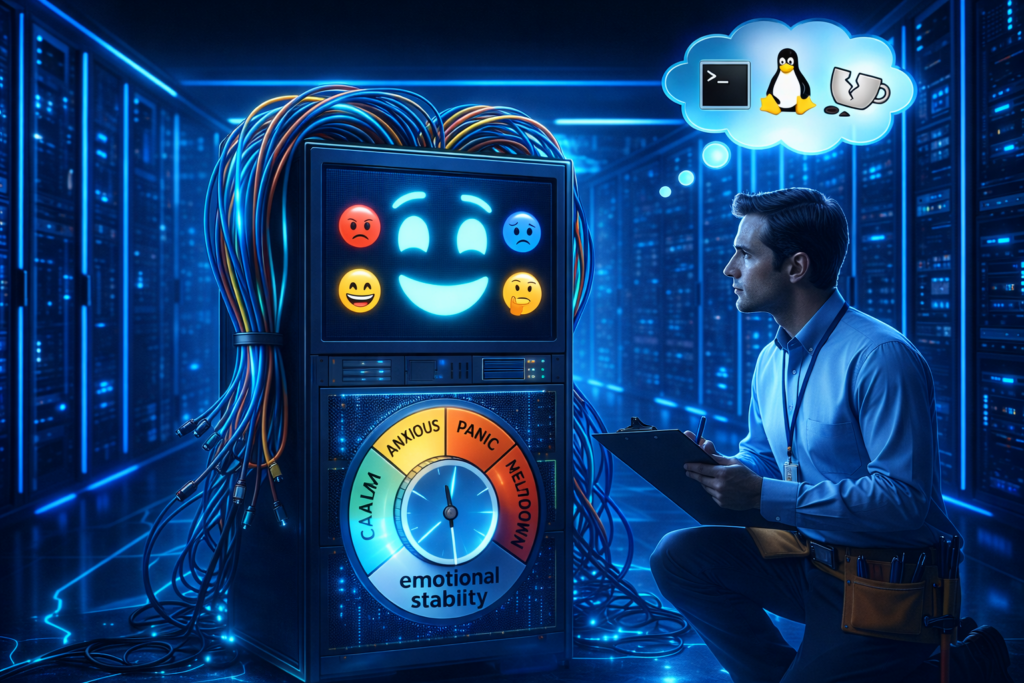
This is not a technical question. It is a psychological one. Linux does not break at random; it merely changes moods. It has emotional states. And once you learn to read them, troubleshooting becomes less like exorcising a demon and more like coaxing a sulking relative out of the bathroom during Thanksgiving dinner.
The grumpy grandfather who started it all
We lived in a numeric purgatory for years. In an era when “multitasking” sounded like dangerous witchcraft and coffee came only in one flavor (scorched), Linux used a system called SysVinit to manage its temperaments. This system boiled the entire machine’s existence down to a handful of numbers, zero through six, called runlevels.
It was a rigid caste system. Each number was a dial you could turn to decide how much Nigel was willing to participate in society.
Runlevel 0 meant Nigel was checking out completely. Death. Runlevel 6 meant Nigel had decided to reincarnate. Runlevel 1 was Nigel as a hermit monk, holed up in a cave with no network, no friends, just a single shell and a vow of digital silence. Runlevel 5 was Nigel on espresso and antidepressants, graphical interface blazing, ready to party and consume RAM for no apparent reason.
This was functional, in the way a Soviet-era tractor is functional. It was also about as intuitive as a dishwasher manual written in cuneiform. You would tell a junior admin to “boot to runlevel 3,” and they would nod while internally screaming. What does three mean? Is it better than two? Is five twice as good as three? The numbers did not describe anything; they just were, like the arbitrary rules of a board game invented by someone who actively hated you.
And then there was runlevel 4. Runlevel 4 is the appendix of the Linux anatomy. It is vaguely present, historically relevant, but currently just taking up space. It was the “user-definable” switch in your childhood home that either did nothing or controlled the neighbor’s garage door. It sits there, unused, gathering digital dust.
Enter the overly organized therapist
Then came systemd. If SysVinit was a grumpy grandfather, systemd is the high-energy hospital administrator who carries a clipboard and yells at people for walking too slowly. Systemd took one look at those numbered mood dials and was appalled. “Numbers? Seriously? Even my router has a name.”
It replaced the cold digits with actual descriptive words: multi-user.target, graphical.target, rescue.target. It was as if Linux had finally gone to therapy and learned to use its words to express its feelings instead of grunting “runlevel 3” when it really meant “I need personal space, but WiFi would be nice.”
Targets are just runlevels with a humanities degree. They perform the exact same job, defining which services start, whether the GUI is invited to the party, whether networking gets a plus-one, but they do so with the kind of clarity that makes you wonder how we survived the numeric era without setting more server rooms on fire.
A Rosetta Stone for Nigel’s mood swings
Here is the translation guide that your cheat sheet wishes it had. Think of this as the DSM-5 for your server.
Runlevel 0 becomes poweroff.target Nigel is taking a permanent nap. This is the Irish Goodbye of operating states.
Runlevel 1 becomes rescue.target Nigel is in intensive care. Only family is allowed to visit (root user). The network is unplugged, the drives might be mounted read-only, and the atmosphere is grim. This is where you go when you have broken something fundamental and need to perform digital surgery.
Runlevel 3 becomes multi-user.target Nigel is wearing sweatpants but answering emails. This is the gold standard for servers. Networking is up, multiple users can log in, cron jobs are running, but there is no graphical interface to distract anyone. It is a state of pure, joyless productivity.
Runlevel 5 becomes graphical.target Nigel is in full business casual with a screensaver. He has loaded the window manager, the display server, and probably a wallpaper of a cat. He is ready to interact with a mouse. He is also consuming an extra gigabyte of memory just to render window shadows.
Runlevel 6 becomes reboot.target Nigel is hitting the reset button on his life.
The command line couch
Knowing Nigel’s mood is useless unless you can change it. You need tools to intervene. These are the therapy techniques you keep in your utility belt.
To eyeball Nigel’s default personality (the one he wakes up with every morning), you ask:
systemctl get-default
This might spit back graphical.target. This means Nigel is a morning person who greets the world with a smile and a heavy user interface. If it says multi-user.target, Nigel is the coffee-before-conversation type.
But sometimes, you need to force a mood change. Let’s say you want to switch Nigel from party mode (graphical) to hermit mode (text-only) without making it permanent. You are essentially putting an extrovert in a quiet room for a breather.
systemctl isolate multi-user.target
The word “isolate” here is perfect. It is not “disable” or “kill.” It is “isolate”. It sounds less like computer administration and more like what happens to the protagonist in the third act of a horror movie involving Antarctic research stations. It tells systemd to stop everything that doesn’t belong in the new target. The GUI vanishes. The silence returns.
To switch back, because sometimes you actually need the pretty buttons:
systemctl isolate graphical.target
And to permanently change Nigel’s baseline disposition, akin to telling a chronically late friend that dinner is at 6:30 when it is really at 7:00:
systemctl set-default multi-user.target
Now Nigel will always wake up in Command Line Interface mode, even after a reboot. You can practically hear the sigh of relief from your CPU as it realizes it no longer has to render pixels.
When Nigel has a real breakdown
Let’s walk through some actual disasters, because theory is just a hobby until production goes down and your boss starts hovering behind your chair breathing through his mouth.
Scenario one: The fugue state
Nigel updated his kernel and now boots to a black screen. He is not dead; he is just confused. You reboot, interrupt the boot loader, and add systemd.unit=rescue.target to the boot parameters.
Nigel wakes up in a safe room. It is a root shell. There is no networking. There is no drama. It is just you and the config files. It is intimate, in a disturbing way. You fix the offending setting, type exec /sbin/init, and Nigel reboots into his normal self, slightly embarrassed about the whole episode.
Scenario two: The toddler on espresso
Nigel’s graphical interface has started crashing like a toddler after too much sugar. Every time you log in, the desktop environment panics and dies. Instead of fighting it, you switch to multi-user.target.
Nigel is now a happy, stable server with no interest in pretty icons. Your users can still SSH in. Your automated jobs still run. Nigel just doesn’t have to perform anymore. It is like taking the toddler out of the Chuck E. Cheese and putting him in a library. The screaming stops immediately.
Scenario three: The bloatware incident
Nigel is a production web server that has inexplicably slowed to a crawl. You dig through the logs and discover that an intern (let’s call him “Not-Fernando”) installed a full desktop environment six months ago because they liked the screensaver.
This is akin to buying a Ferrari to deliver pizza because you like the leather seats. The graphical target is eating resources that your database desperately needs. You set the default to multi-user.target and reboot. Nigel comes back lean, mean, and suddenly has five hundred extra megabytes of RAM to play with. It is like watching someone shed a winter coat in the middle of July.
The mindset shift
Beginners see a black screen and ask, “Why is Nigel broken?” Professionals see a black screen and ask, “Which target is Nigel in, and which services are active?”
This is not just semantics. It is the difference between treating a symptom and diagnosing a disease. When you understand that Linux doesn’t break so much as it changes states, you stop being a victim of circumstance and start being a negotiator. You are not praying to the machine gods; you are simply asking Nigel, “Hey buddy, what mood are you in?” and then coaxing him toward a more productive state.
The panic evaporates because you know the vocabulary. You know that rescue.target is a panic room, multi-user.target is a focused work session, and graphical.target is Nigel trying to impress someone at a party.
Linux targets are not arcane theory reserved for greybeards and certification exams. They are the foundational language of state management. They are how you tell Nigel, “It is okay to be a hermit today,” or “Time to socialize,” or “Let’s check you into therapy real quick.”
Once you internalize this, boot issues stop being terrifying mysteries. They become logical puzzles. Interviews stop being interrogations. They become conversations. You stop sounding like a generic admin reading a forum post and start sounding like someone who knows Nigel personally.
Because you do. Nigel is that fussy, brilliant, occasionally melodramatic friend who just needs the right kind of encouragement. And now you have the exact words to provide it.
Linux feels a lot like living in a loft apartment: the pipes are on display, every clank echoes, and when something leaks, you’re the first to squelch through the puddle. This guide hands you a mop, half a dozen snappy commands that expose where your disk space and memory have wandered off to, plus a couple of click‑friendly detours. Expect prose that winks, occasionally rolls its eyes, and never ever sounds like tax law.
Why checking disk and memory matters
Think of storage and RAM as the pantry and fridge in a shared flat. Ignore them for a week, and you end up with three half‑finished jars of salsa (log files) and leftovers from roommates long gone (orphaned kernels). A five‑minute audit every Friday spares you the frantic sprint for extra space, or worse, the freeze just before a production deploy.
Disk panic survival kit
Get the big picture fast
df is the bird’s‑eye drone shot of your mounted filesystems, everything lines up like contestants at a weigh‑in.
Remember to append it to /etc/fstab so it survives a reboot.
Prefer clicking to typing
Yes, there’s a GUI for that. GNOME Disks and KSysGuard both display live graphs and won’t judge your typos. On Ubuntu, you can run:
$ sudo apt install gnome-disk-utility
Launch it from the menu and watch I/O spikes climb like toddlers on a sugar rush.
Quick reference cheat sheet
Show all mounts minus temp stuff Command: df -hT -x tmpfs -x devtmpfs Memory aid: df = disk fly‑over
Top ten heaviest directories Command: du -h –max-depth=1 /path | sort -hr | head Memory aid: du = directory weight
Interactive cleanup Command: ncdu / Memory aid: ncdu = du after espresso
Live RAM counter Command: free -h Memory aid: free = funds left
Spot memory‑hogging apps Command: top -o %MEM Memory aid: top = talent show
Swap usage Command: swapon –show Memory aid: swap on stage
Stick this list on your clipboard; your future self will thank you.
Wrapping up without a bow
You now own the detective kit for disk and memory mysteries, no cosmic metaphors, just straight talk with a wink. Run df -hT right now; if the numbers give you heartburn, take three deep breaths and start paging through ncdu. Storage leaks and RAM gluttons are inevitable, but letting them linger is optional.
Found an even better one‑liner? Drop it in the comments and make the rest of us look lazy. Until then, happy sleuthing, and may your logs stay trim and your swap forever bored.
A rogue process squatting on port 8080 is the tech-equivalent of leaving your front-door key in the lock: nothing else gets in or out, and the neighbours start gossiping. Ports are exclusive party venues; one process per port, no exceptions. When an app crashes, restarts awkwardly, or you simply forget it’s still running, it grips that port like a toddler with the last cookie, triggering the dreaded “address already in use” error and freezing your deployment plans.
Below is a brisk, slightly irreverent field guide to evicting those squatters, gracefully when possible, forcefully when they ignore polite knocks, and automatically so you can get on with more interesting problems.
When ports act like gate crashers
Ports are finite. Your Linux box has 65535 of them, but every service worth its salt wants one of the “good seats” (80, 443, 5432…). Let a single zombie process linger, and you’ll be running deployment whack-a-mole all afternoon. Keeping ports free is therefore less superstition and more basic hygiene, like throwing out last night’s takeaway before the office starts to smell.
Spot the culprit
Before brandishing a digital axe, find out who is hogging the socket.
lsof, the bouncer with the clipboard
sudo lsof -Pn -iTCP:8080 -sTCP:LISTEN
lsof prints the PID, the user, and even whether our offender is IPv4 or IPv6. It’s as chatty as the security guard who tells you exactly which cousin tried to crash the wedding.
ss, the Formula 1 mechanic
Modern kernels prefer ss, it’s faster and less creaky than netstat.
sudo ss -lptn sport = :8080
fuser, the debt collector
When subtlety fails, fuser spells out which processes own the file or socket:
sudo fuser -v 8080/tcp
It displays the PID and the user, handy for blaming Dave from QA by name.
Tip: Add the -k flag to fuser to terminate offenders in one swoop, great for scripts, dangerous for fingers-on-keyboard humans.
Gentle persuasion first
A well-behaved process will exit graciously if you offer it a polite SIGTERM (15):
kill -15 3245 # give the app a chance to clean up
Think of it as tapping someone’s shoulder at closing time: “Finish your drink, mate.”
If it doesn’t listen, escalate to SIGINT (2), the Ctrl-C of signals, or SIGHUP (1) to make daemons reload configs without dying.
Bring out the big stick
Sometimes you need the digital equivalent of cutting the mains power. SIGKILL (9) is that guillotine:
No cleanup, no goodbye note, just a corpse on the floor. Databases hate this, log files dislike it, and system-wide supervisors may auto-restart the process, so use sparingly.
One-liners for the impatient
sudo kill -9 $(sudo ss -lptn sport = :8080 | awk 'NR==2{split($NF,a,"pid=");split(a[2],b,",");print b[1]}')
Single line, single breath, done. It’s the Fast & Furious of port freeing, but remember: copy-paste speed correlates strongly with “oops-I-just-killed-production”.
Drop it in ~/bin/freeport, mark executable, and call freeport 8080 before every dev run. Fewer keystrokes, fewer swearwords.
systemd, your tireless janitor
Create a watchdog service so the OS restarts your app only when it exits cleanly, not when you manually murder it:
[Unit]
Description=Watchdog for MyApp on 8080

[Service]
ExecStart=/usr/local/bin/myapp
Restart=on-failure
RestartPreventExitStatus=64   # don’t restart if we SIGKILLed
- name: Free port 8080 across dev boxes
  hosts: dev
  become: true
  tasks:
    - name: Terminate offender on 8080
      shell: |
        pid=$(ss -lptn 'sport = :8080' | awk 'NR==2{split($NF,a,"pid=");split(a[2],b,",");print b[1]}')
        [ -n "$pid" ] && kill -15 "$pid" || echo "Nothing to kill"
Run it before each CI deploy; your colleagues will assume you possess sorcery.
A few cautionary tales
Containers restart themselves. Kill a process inside Docker, and the orchestrator may spin it right back up. Either stop the container or adjust restart policies.
Dependency dominoes. Shooting a backend API can topple every microservice that chats to it. Check systemctl status or your Kubernetes liveness probes before opening fire .
Sudo isn’t seasoning. Use it only when the victim process belongs to another user. Over-salting scripts with sudo causes security heartburn.
Wrap-up
Freeing a port isn’t arcane black magic; it’s janitorial work that keeps your development velocity brisk and your ops team sane. Identify the squatter, ask it nicely to leave, evict it if it refuses, and automate the routine so you rarely have to think about it again. Got a port-conflict horror story involving 3 a.m. pager alerts and too much caffeine? Tell me in the comments, schadenfreude is a powerful teacher.
Now shut that laptop lid and actually get on with your day. The ports are free, and so are you.
We all get comfortable. We settle into our favorite chair, our favorite IDE, and our little corner of the Linux command line. We master ls, grep, and cd, and we walk around with the quiet confidence of someone who knows their way around. But the terminal isn’t a neat, modern condo; it’s a sprawling, old mansion filled with secret passages, dusty attics, and bizarre little tools left behind by generations of developers.
Most people stick to the main hallways, completely unaware of the weird, wonderful, and handy commands hiding just behind the wallpaper. These aren’t your everyday tools. These are the secret agents, the oddballs, and the unsung heroes of your operating system. Let’s meet a few of them.
The textual anarchists
Some commands don’t just process text; they delight in mangling it in beautiful and chaotic ways.
First, meet rev, the command-line equivalent of a party trick that turns out to be surprisingly useful. It takes whatever you give it and spits it out backward.
echo "desserts" | rev
This, of course, returns stressed. Coincidence? The terminal thinks not. At first glance, you might dismiss it as a tool for a nerdy poetry slam. But the next time you’re faced with a bizarrely reversed data string from some ancient legacy system, you’ll be typing rev and looking like a wizard.
If rev is a neat trick, shuf is its chaotic cousin. This command takes the lines in your file and shuffles them into a completely random order.
# Create a file with a few choices
echo -e "Order Pizza\nDeploy to Production\nTake a Nap" > decisions.txt

# Let the terminal decide your fate
shuf -n 1 decisions.txt
Why would you want to do this? Maybe you need to randomize a playlist, test an algorithm, or run a lottery for who has to fix the next production bug. shuf is an agent of chaos, and sometimes, chaos is exactly what you need.
Then there’s tac, which is cat spelled backward for a very good reason. While the ever-reliable cat shows you a file from top to bottom, tac shows it to you from bottom to top. This might sound trivial, but anyone who has ever tried to read a massive log file will see the genius.
# Instantly see the last 5 errors in a huge log file
tac /var/log/syslog | grep -i "error" | head -n 5
This lets you get straight to the juicy, most recent details without an eternity of scrolling.
The obsessive organizers
After all that chaos, you might need a little order. The terminal has a few neat freaks ready to help.
The nl command is like cat’s older, more sophisticated cousin who insists on numbering everything. It adds formatted line numbers to a file, turning a simple text document into something that looks official.
# Add line numbers to a script
nl backup_script.sh
Now you can professionally refer to “the critical bug on line 73” during your next code review.
But for true organizational bliss, there’s column. This magnificent tool takes messy, delimited text and formats it into beautiful, perfectly aligned columns.
# Let's say you have a file 'users.csv' like this:
# Name,Role,Location
# Alice,Dev,Remote
# Bob,Sysadmin,Office

cat users.csv | column -t -s,
This command transforms your comma-vomit into a table fit for a king. It’s so satisfying it should be prescribed as a form of therapy.
The tireless workers
Next, we have the commands that just do their job, repeatedly and without complaint.
In the entire universe of Linux, there is no command more agreeable than yes. Its sole purpose in life is to output a string over and over until you tell it to stop.
# Automate the confirmation for a script that keeps asking
yes | sudo apt install my-awesome-package
This is the digital equivalent of nodding along until the installation is complete. It is the ultimate tool for the lazy, the efficient, and the slightly tyrannical system administrator.
If yes is the eternal optimist, watch is the eternal observer. This command executes another program periodically, showing its output in real time.
# Monitor the number of established network connections every 2 seconds
watch -n 2 "ss -t | grep ESTAB | wc -l"
It turns your terminal into a live dashboard. It’s the command-line equivalent of binge-watching your system’s health, and it’s just as addictive.
For an even nosier observer, try dstat. It’s the town gossip of your system, an all-in-one tool that reports on everything from CPU stats to disk I/O.
# Get a running commentary of your system's vitals
dstat -tcnmd
This gives you a timestamped report on cpu, network, disk, and memory usage. It’s like top and iostat had a baby and it came out with a Ph.D. in system performance.
The specialized professionals
Finally, we have the specialists, the commands built for one hyper-specific and crucial job.
The look command is a dictionary search on steroids. It performs a lightning-fast search on a sorted file and prints every line that starts with your string.
# Find all words in the dictionary starting with 'compu'
look compu /usr/share/dict/words
It’s the hyper-efficient librarian who finds “computer,” “computation,” and “compulsion” before you’ve even finished your thought.
For more complex relationships, comm acts as a file comparison counselor. It takes two sorted files and tells you which lines are unique to each and which they share.
# File 1: developers.txt (sorted)
# alice
# bob
# charlie

# File 2: admins.txt (sorted)
# alice
# david
# eve

# See who is just a dev, just an admin, or both
comm developers.txt admins.txt
Perfect for figuring out who has access to what, or who is on both teams and thus doing twice the work.
The desire to procrastinate productively is a noble one, and Linux is here to help. Meet at. This command lets you schedule a job to run once at a specific time.
# Schedule a server reboot for 3 AM tomorrow.
# After hitting enter, you type the command(s) and press Ctrl+D.
at 3:00am tomorrow
reboot
^D (Ctrl+D)
Now you can go to sleep and let your past self handle the dirty work. It’s time travel for the command line.
And for the true control freak, there’s chrt. This command manipulates the real-time scheduling priority of a process. In simple terms, you can tell the kernel that your program is a VIP.
# Run a high-priority data processing script
sudo chrt -f 99 ./process_critical_data.sh
This tells the kernel, “Out of the way, peasants! This script is more important than whatever else you were doing.” With great power comes great responsibility, so use it wisely.
Keep digging
So there you have it, a brief tour of the digital freak show lurking inside your Linux system. These commands are the strange souvenirs left behind by generations of programmers, each one a solution to a problem you probably never knew existed. Your terminal is a treasure chest, but it’s one where half the gold coins might just be cleverly painted bottle caps. Each of these tools walks the fine line between a stroke of genius and a cry for help. The fun part isn’t just memorizing them, but that sudden, glorious moment of realization when one of these oddballs becomes the only thing in the world that can save your day.